Product Version: 6.5.0.0
Overview
This article explains how to generate a detailed report listing servers missing Microsoft patches, along with their associated severity levels such as Critical, High, Medium, and Low. This report helps IT administrators prioritize remediation efforts, improve visibility of vulnerabilities, and strengthen security posture across the environment.
Steps to generate a Microsoft-specific missing patches report:
1. Navigate to the Reports Section
Go to the Reports module in the console.
2. Locate the “Missing Patches (API)” Report
Use the search bar to find the report titled Missing Patches (API).
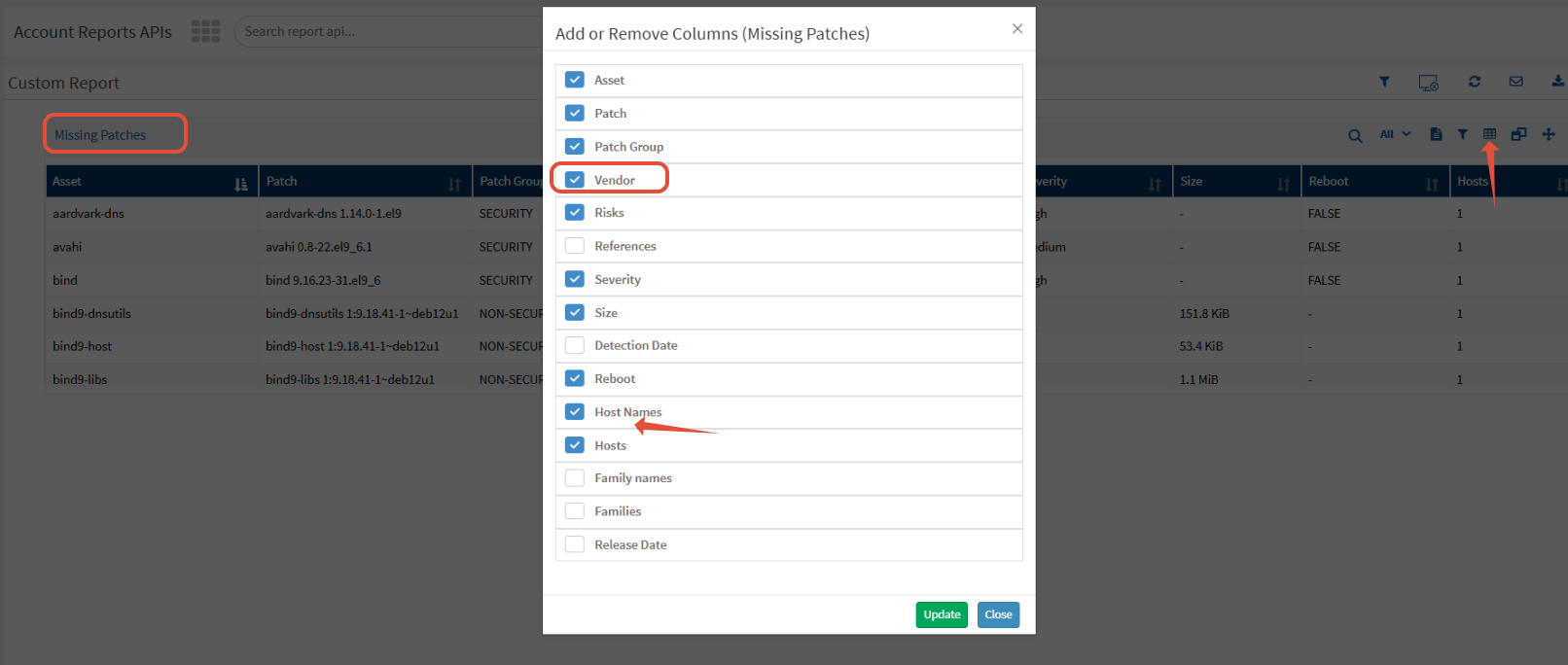
3. Add Host Name to the Report
Click Add/Remove Columns.
Select the Host Name checkbox.
Click Update to apply the changes.
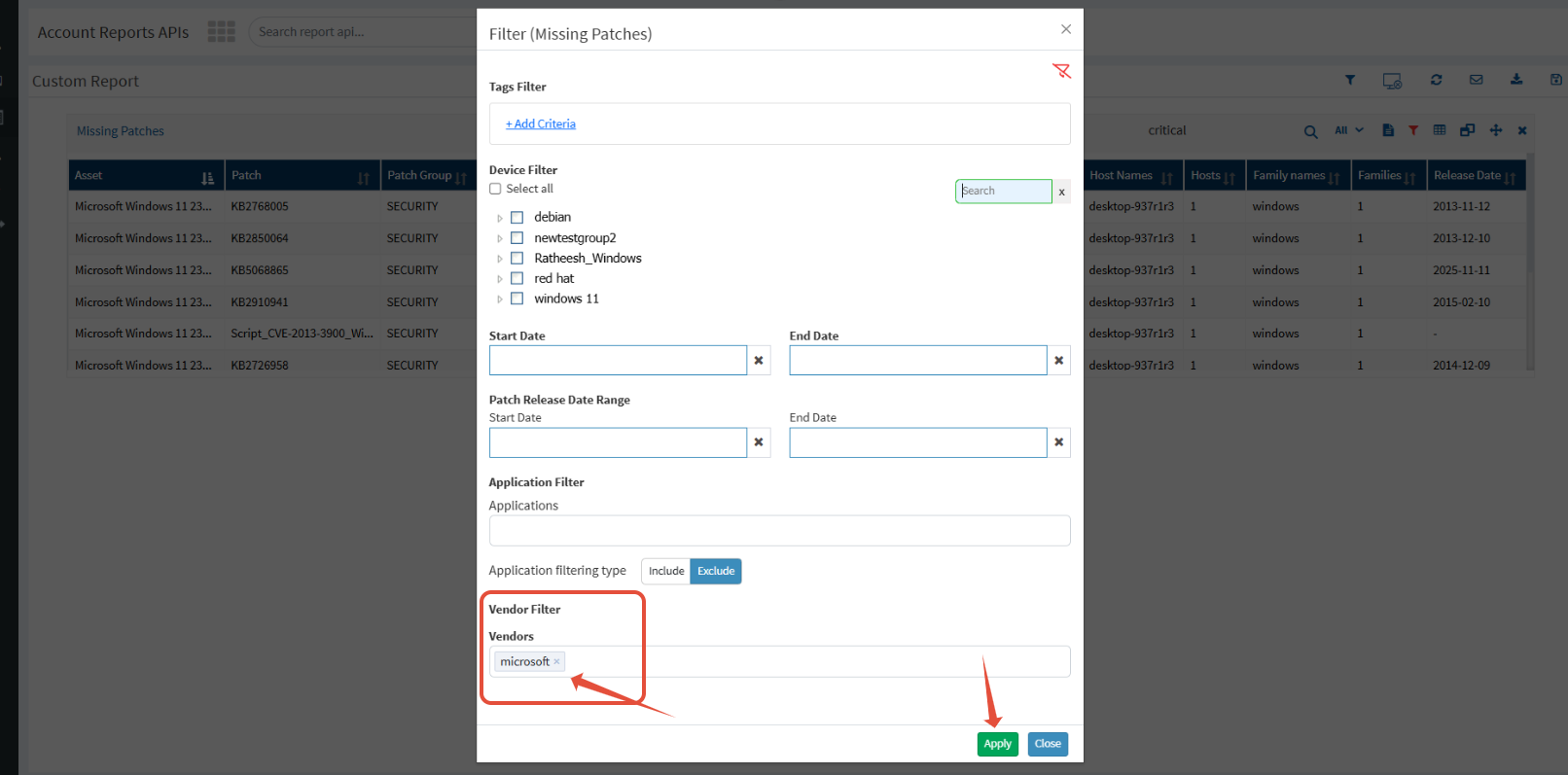
4. Filter the Report by Vendor
Open the Vendor filter.
Select Microsoft from the list.
Click Update to refresh the report with Microsoft-only patch data.
5. Filter by Patch Severity
To focus on specific severity levels, use the report’s search bar and enter one of the following keywords:
Critical
High
Medium
Low
This allows you to quickly sort and view patches based on their severity classification.
By following this procedure, you can easily generate a comprehensive report highlighting all Microsoft patches missing across your server environment. This report supports efficient patch prioritization, improves compliance tracking, and ensures faster remediation of high-risk vulnerabilities. If you require assistance with further customization or additional reporting features, please contact the Support Team for help.
Was this article helpful?
That’s Great!
Thank you for your feedback
Sorry! We couldn't be helpful
Thank you for your feedback
Feedback sent
We appreciate your effort and will try to fix the article