Overview
This article explains how to schedule a system reboot automatically at a specific date and time using the Automation module in the EM Console.
This use case allows administrators to automatically reboot devices at a predefined time using the EM console’s automation feature. Once the reboot job is configured with a specific date and time, the system will reboot consistently according to the defined schedule without requiring manual intervention.
Automating system reboots can help support routine maintenance, system stability, and compliance activities by ensuring devices are restarted periodically.
Steps to Schedule an Automatic Reboot
1. Navigate to the EM Console
Log in to the EM Console.
Navigate to: EM->Actions->System
2. Create a Reboot Automation
In the Create Response section, configure the following fields:
Operating System Family
Select Windows or the appropriate operating system.Action
Select Reboot.Response Name
Provide a meaningful name for the reboot task.Response Description
Enter an appropriate description for the task.Message
Enter a custom message such as:Scheduled Automatic RebootTime in Minutes
Set the value to 0 if the reboot should execute immediately once the scheduled time is reached.
3. Select Target Devices
Under the Target section:
Select the devices that should receive the reboot automation.
4. Configure the Schedule
Define how often the reboot should occur.
Example configuration:
Schedule Type: Weekly
Frequency: Every 1st week
Day: Monday
Start Time: 02:00 PM
End Time: 02:30 PM
This configuration ensures that the reboot automation runs during the defined time window.
5. Create the Response
Click Create Response to finalize and schedule the automated reboot.
Once created, the reboot automation will run automatically according to the configured schedule.
Reboot Notification Behavior
You can configure user notifications to alert users before the reboot occurs.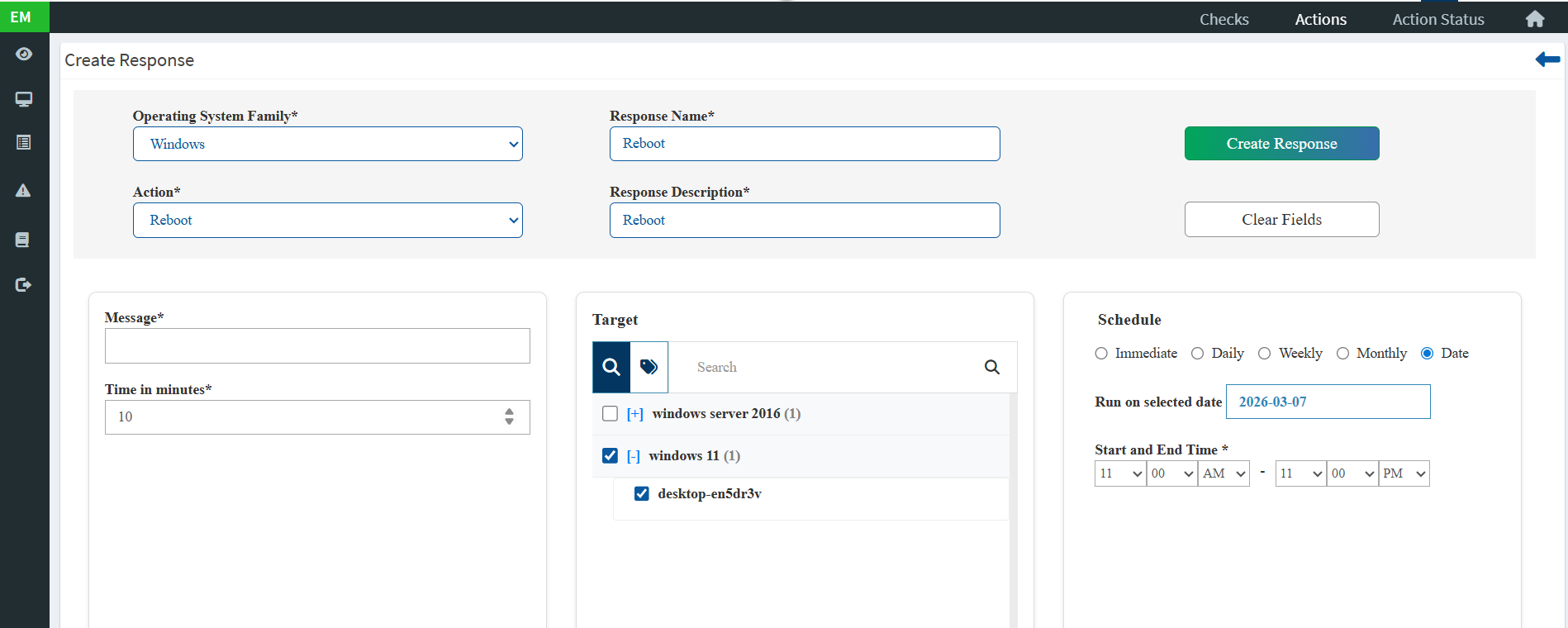
Example scenario:
Notification Time: 11:00 AM
Reboot Time: 11:00 PM
Configure the schedule as follows:
Start Time: 11:00 AM
End Time: 11:00 PM
Once the response is created:
Users will receive a reboot notification at 11:00 AM, informing them that the system will reboot at 11:00 PM.
User Notification Options
When the reboot notification appears, users will have the following options: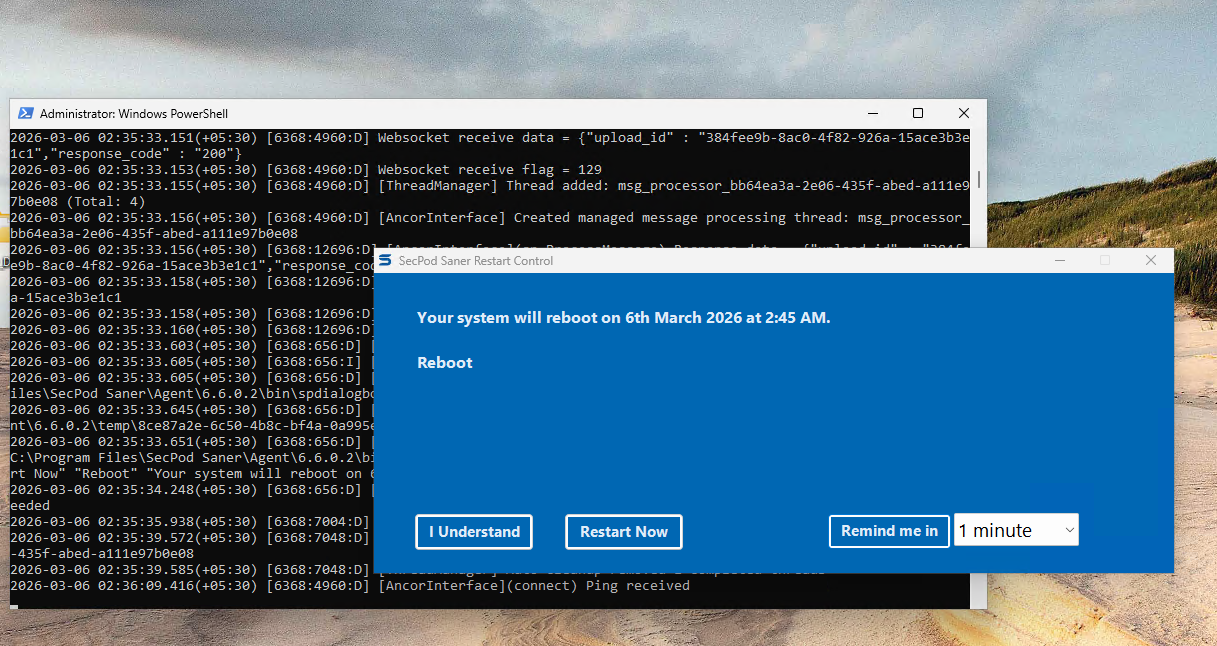
1. I Understand
If the user selects I Understand, another notification will appear 2 minutes before the reboot time.
Example:
Reboot Time: 11:00 PM
Reminder Notification: 10:58 PM
2. Reboot Now
Selecting Reboot Now will immediately reboot the device.
3. Remind Me
If the user selects Remind Me, they can choose a reminder time from a dropdown menu.
Example:
Remind Me: 5 minutes
The notification will appear again after 5 minutes, while the reboot will still occur according to the scheduled time.
Time in Minutes Behavior
When creating the reboot task, the Time in Minutes field controls the delay after the scheduled reboot time.
Example:
Scheduled Reboot Time: 11:00 PM
Time in Minutes: 10
Result:
Actual Reboot Time: 11:10 PM
This setting allows administrators to add a delay before the reboot executes.
Conclusion
By configuring a scheduled reboot using the EM Console automation feature, administrators can reliably automate system restarts at defined intervals.
This ensures devices are rebooted consistently as part of routine maintenance and operational management, while reducing the need for manual intervention and improving overall system stability.
Was this article helpful?
That’s Great!
Thank you for your feedback
Sorry! We couldn't be helpful
Thank you for your feedback
Feedback sent
We appreciate your effort and will try to fix the article