Product Version: 6.5.X.X
Overview
This article provides a step-by-step guide to access and understand detailed information related to remediation jobs executed through the Saner CVEM console. Understanding these details helps administrators monitor patch deployment and troubleshoot issues effectively.
Steps to Access Remediation Job Details
1. Log In to the Saner CVEM Console and Select the Appropriate Account
Access the Saner CVEM console using your credentials.
If your organization manages multiple accounts, ensure you select the correct account where the remediation job was created.
2. Navigate to the Patch Management Module
From the main dashboard, click on Patch Management.
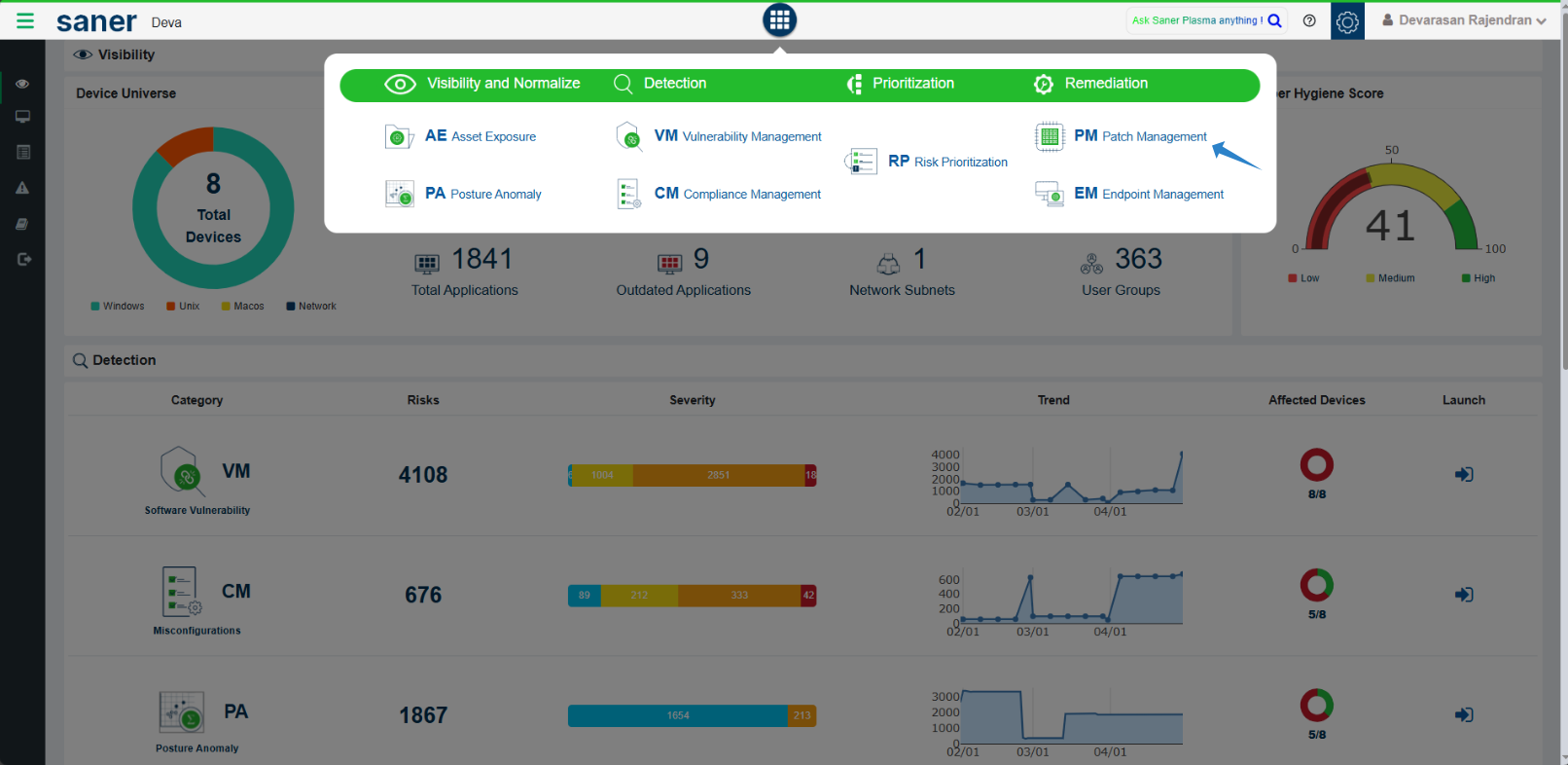
This module provides visibility into all patching activities and associated remediation tasks.
3. Access the Remediation Job
Within Patch Management, go to the Status menu.

From the left-hand side panel, locate and select the remediation job you want to view.

4. View Detailed Job Information
Once the job is selected, the right-hand pane displays a summary and current status.
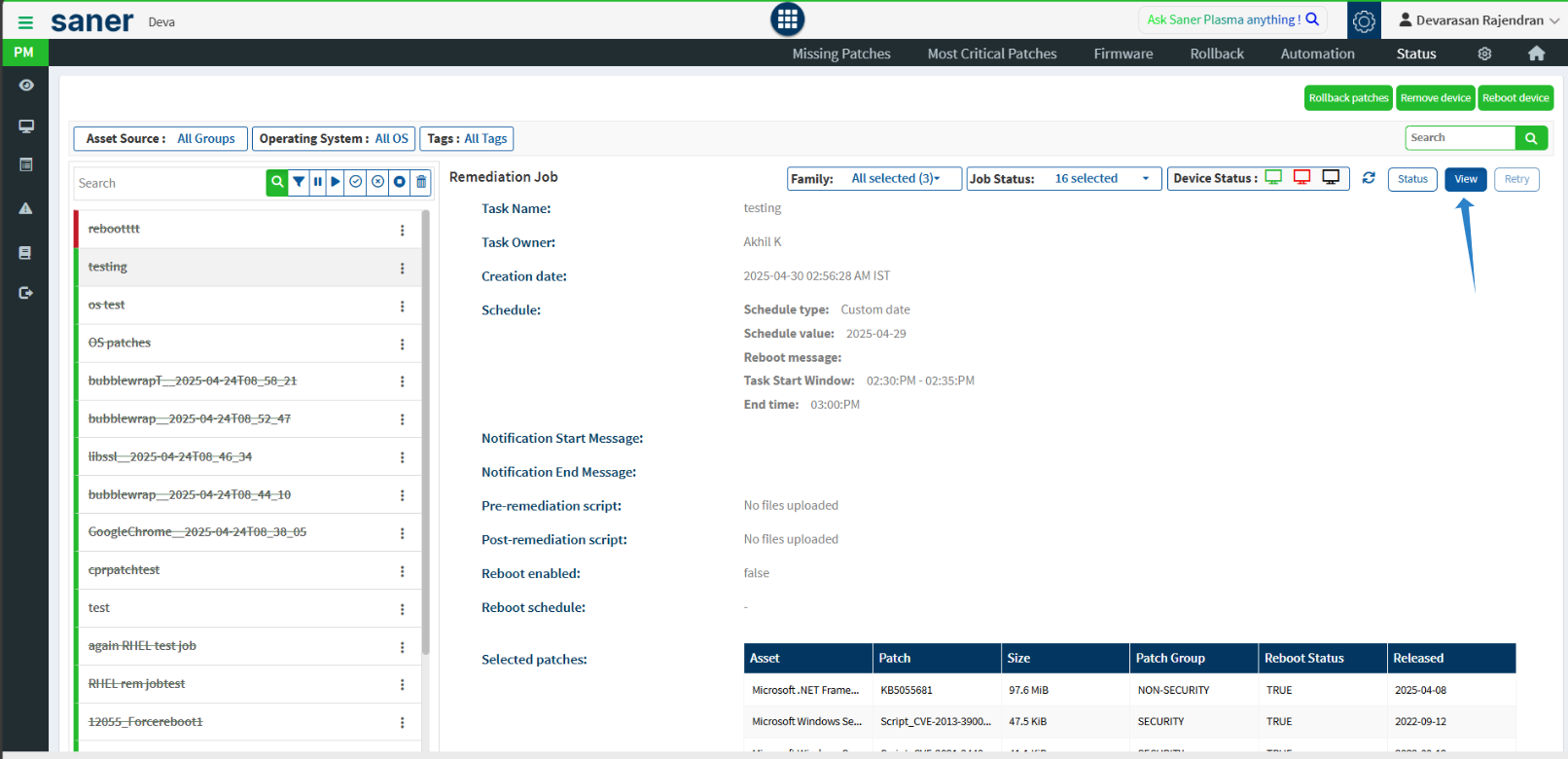
Click on View to access comprehensive details of the remediation task.
Remediation Job Attributes Explained
| Field | Description |
|---|---|
| Task Name | Name of the remediation job or task. |
| Task Owner | User or administrator who created the task. |
| Creation Date | Date and time when the task was created. |
| Schedule Type | Indicates if the task was scheduled as Immediate or Custom. |
| Schedule Value | Exact date and time for execution if custom scheduled. |
| Reboot Message | Message displayed to end-users regarding system reboot. |
| Task Start Window | Start time of the task execution window. |
| End Time | Time at which the remediation task is expected to complete. |
| Notification Start Message | Custom message displayed to users before the task begins. |
| Notification End Message | Custom message displayed to users after the task ends. |
| Pre-remediation Script | Script uploaded to run before applying patches. |
| Post-remediation Script | Script uploaded to run after patches are applied. |
| Reboot Enabled | Indicates whether a system reboot is enabled as part of the remediation. |
| Reboot Schedule | Scheduled date/time for reboot (if applicable). |
| Selected Patches | Lists all patches included in the remediation task. |
Patch-Level Details
The detailed view also provides a list of patches applied as part of the remediation task, along with associated assets:
| Asset | Patch | Size | Patch Group | Reboot Status | Released Date | Application Name |
|---|---|---|---|---|---|---|
| Device name | Patch name or ID | Patch file size | Group name assigned | Whether reboot is required | Date patch was released | Application name |
Applied On
Under the Applied On section, view a list of devices where the patches were successfully applied.
Need Assistance?
If you need help interpreting job results or troubleshooting failed patches, contact our support team. We are glad to assist.
Was this article helpful?
That’s Great!
Thank you for your feedback
Sorry! We couldn't be helpful
Thank you for your feedback
Feedback sent
We appreciate your effort and will try to fix the article