Overview
This knowledge base article explains an issue where users are unable to log in to the Saner CVEM console due to a system time mismatch impacting SAML-based authentication. It outlines the root cause, observed symptoms, and step-by-step resolution to restore access.
Summary of the Issue
Users were unable to log in to the Saner CVEM console. During investigation, the catalina.out logs showed SAML validation errors such as:
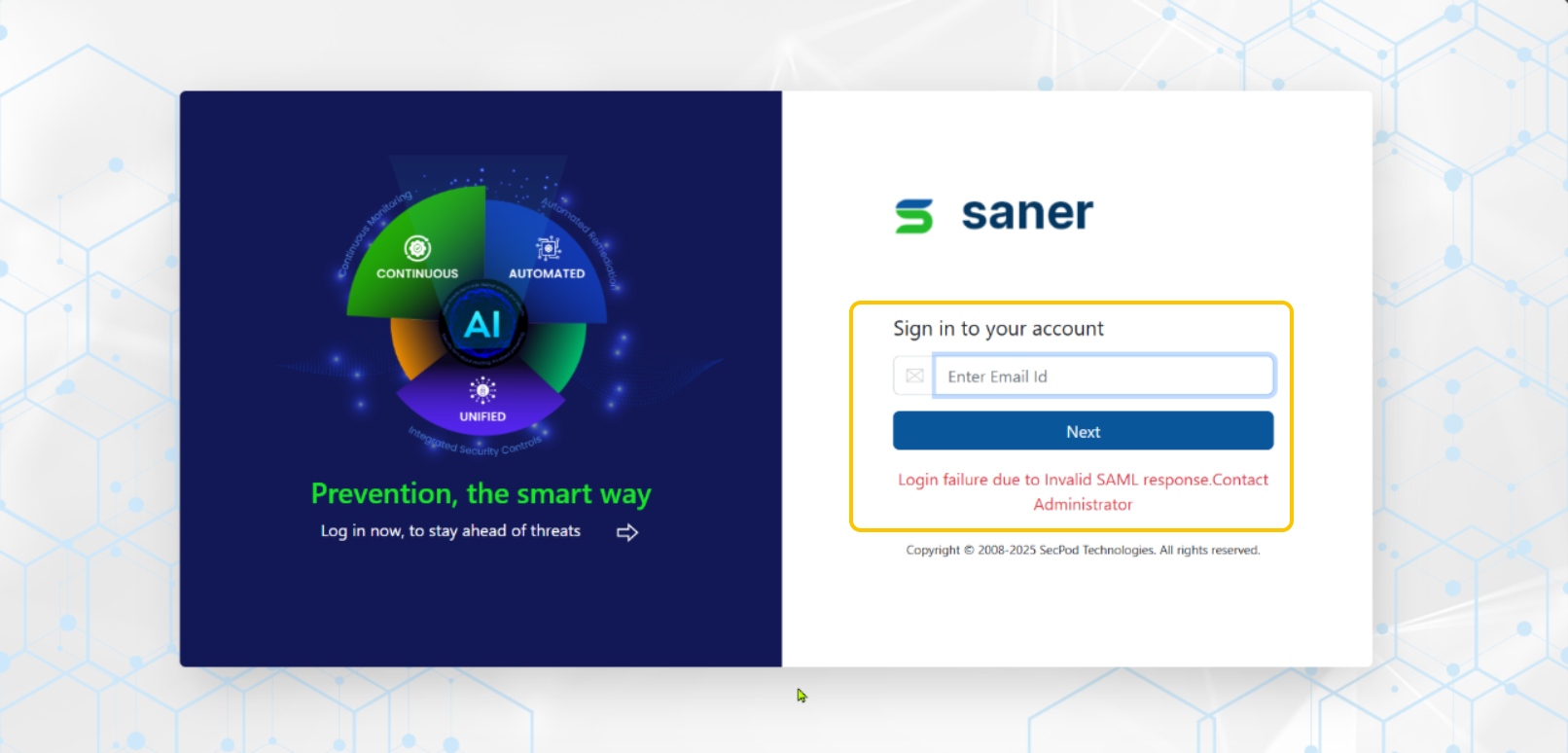
This error occurs when the server system time does not align with the timestamp conditions in the SAML response sent by the Identity Provider (IdP).
Root Cause
A time difference of approximately 14 minutes was identified between the server system clock and the expected time. Further inspection using:
revealed the following:
The system was using systemd-timesyncd
NTP server configured as:
ntp.ubuntu.comServer address resolved to IPv6 (
2620:2d:4000:1::3f)System clock was not synchronized
Most Likely Causes
One or more of the following conditions:
systemd-timesyncdservice not runningOutbound UDP port 123 blocked by firewall
IPv6 connectivity unavailable while NTP resolution prefers IPv6
Corporate environment requiring an internal NTP server
Resolution Implemented
The server system time was corrected and synchronized successfully. Once the clock was aligned, SAML response validation succeeded and console login was restored.
Step-by-Step Fix
Step 1: Check and Restart Time Sync Service
Check service status:
If not active, run:
Wait ~30 seconds and verify:
Step 2: Force IPv4 NTP (Highly Recommended)
If the system is resolving NTP over IPv6, force IPv4-based NTP servers.
Edit configuration:
Set the following:
Save and restart the service:
Verify sync status:
Step 3: Verify Firewall / Network Access
Ensure outbound UDP port 123 is allowed.
Test connectivity:
If this fails, NTP traffic is blocked. In such cases, configure an internal or corporate NTP server with help from the network/infra team.
Step 4: Manually Correct Time (If Drift Is Large)
If time drift is significant, NTP may refuse to sync automatically.
Set time manually once:
Then restart sync:
Step 5: Confirm Final State
Run:
Expected output:
Step 6: Restart Saner Services
Once time synchronization is confirmed:
Why This Resolves the Login Issue
SAML authentication strictly validates timestamps in authentication responses. When the system clock is out of sync, SAML assertions may appear as not yet valid or expired. Synchronizing the system time resolves the validation error and restores normal login functionality.
Next Steps / Validation
If the issue persists, please share:
Output of
timedatectlOutput of
systemctl status systemd-timesyncd
Our team will review and assist further as needed.
Applies To
Saner CVEM ON-Prem deployments
Environments using SSO login/SAML-based authentication
Linux systems using systemd-timesyncd
Was this article helpful?
That’s Great!
Thank you for your feedback
Sorry! We couldn't be helpful
Thank you for your feedback
Feedback sent
We appreciate your effort and will try to fix the article