Product Version: 6.5.X.X
Overwiew
This Knowledge Base Article explains how to view and manage installed patches in Saner Patch Management. The Installed Patches page provides detailed visibility into patches that have already been applied across devices and software assets, enabling administrators to verify patch compliance, review installation details, and manage rollback actions when required.
Summary
The Installed Patches page in Saner PM offers a comprehensive view of successfully deployed patches. It includes key details such as patch size, installation date, rollback eligibility, and associated devices or assets. The page also supports filtering, search, and rollback management to simplify patch tracking in large environments.
1. Overview of Installed Patches Page
The Installed Patches page enables administrators to:
View a complete list of patches that have been successfully installed
Identify the devices or software assets associated with each patch
Determine whether a patch supports rollback and take appropriate action
This view helps validate patch deployment effectiveness and maintain system stability.
2. Toggle Between Device and Asset View
A toggle option is available at the top of the Installed Patches pane, allowing users to switch between two perspectives:
Device View
Displays patches installed on individual devices
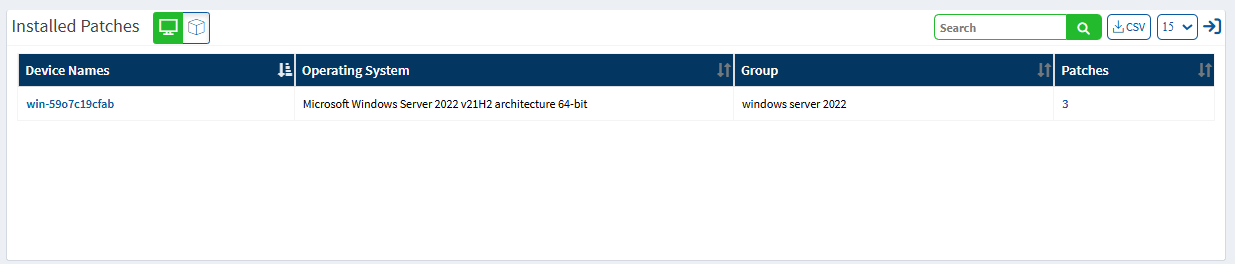
Includes details such as:
Device Name
Patch Size
Installation Date
Rollback Option
Asset View
Shows patches applied to specific software assets
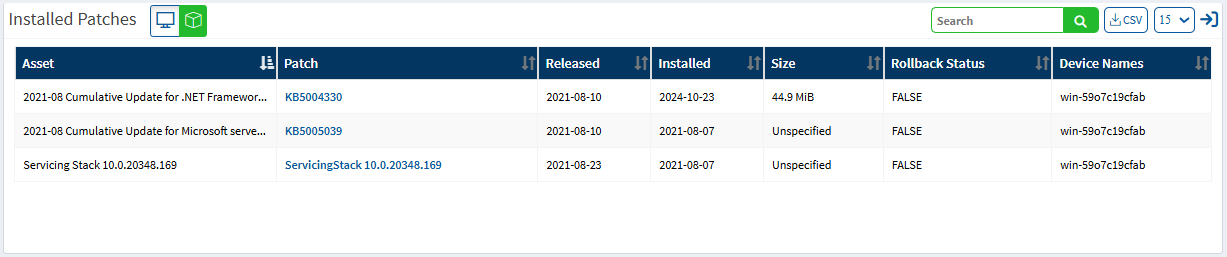
Helps understand which vulnerabilities have already been addressed for each asset
This flexibility allows administrators to manage patches based on either device-level or asset-level requirements.
3. Column Details
The following columns are displayed in both Device and Asset views:
| Column | Description |
|---|---|
| Patch Name | Name or identifier of the installed patch |
| System / Device | The system or device on which the patch was installed |
| Asset (if applicable) | The software component or application associated with the patch |
| Installation Date | The date the patch was applied |
| Patch Size | Size of the patch file (MB/KB) |
| Rollback Status | Indicates whether rollback is supported and its current status |
4. Patch Rollback Option
If a patch supports rollback, the following steps can be used:
Click the expand icon next to the patch entry
The detailed Installed Patches page with rollback controls will be displayed
Follow the on-screen instructions to proceed with the rollback, if required
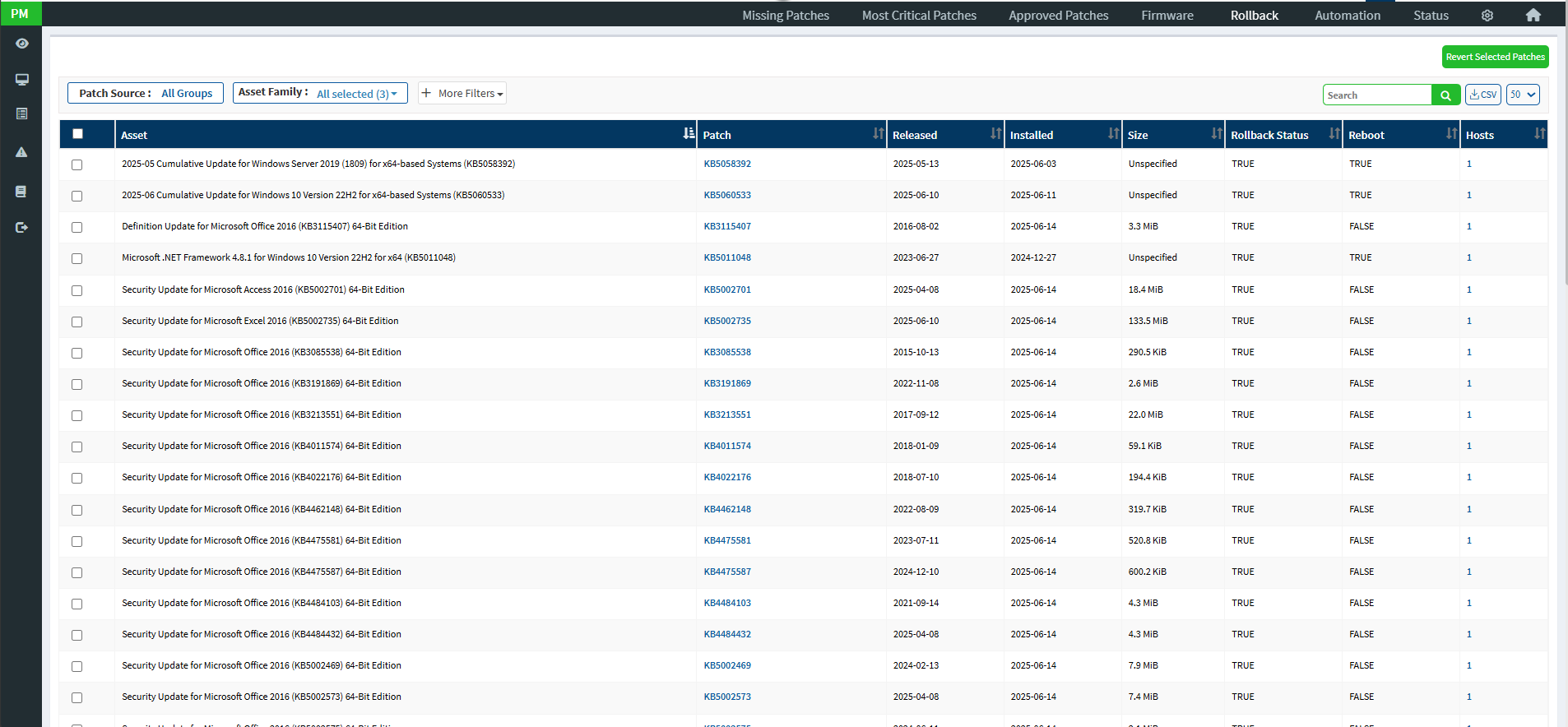
Note: Rollback availability depends on the patch type and system configuration.
5. Filters and Search
To simplify navigation and improve efficiency, the Installed Patches page provides:
Filters
Group Filter: Narrow down patch data by selecting a specific device group
Search
Keyword-based search to locate installed patches by:
Device Name
Asset Name
Patch Name
These options are especially useful in environments with a large number of devices.
Conclusion
The Installed Patches page in Saner PM enables administrators to effectively track patch deployment, verify successful installations, and manage rollback operations when necessary. By leveraging device and asset views along with filters and search capabilities, organizations can ensure better patch compliance and operational control.
For assistance with patch rollback or installation validation, please contact support@secpod.com
Was this article helpful?
That’s Great!
Thank you for your feedback
Sorry! We couldn't be helpful
Thank you for your feedback
Feedback sent
We appreciate your effort and will try to fix the article