Product Version: 6.5.x.x
Overview
This article describes the troubleshooting steps to follow when a device does not appear in the Saner CVEM console even after successful agent installation. This behavior is commonly caused by subscription availability issues, expired accounts, device state restrictions, or network connectivity problems.
Troubleshooting Steps
1. Check Subscription Availability
Log in to the Saner CVEM Console.
Navigate to Control Panel.
Select the relevant Organization.
Verify that a valid subscription is available for agent activation.
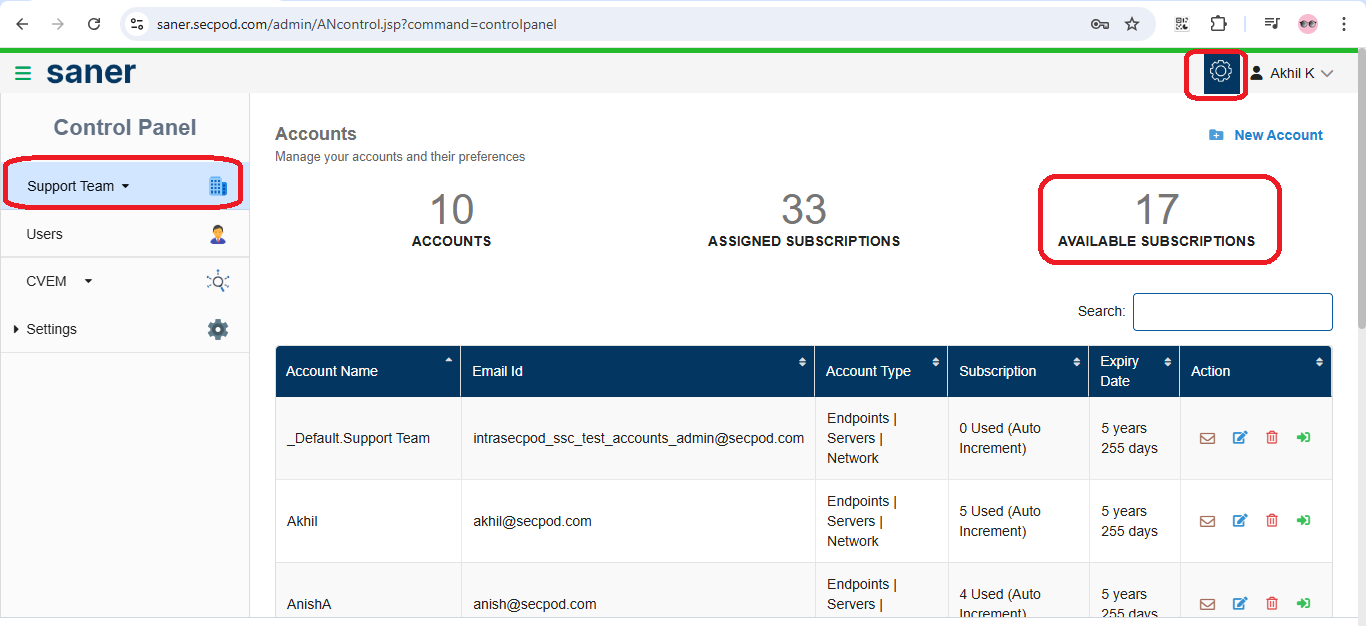
Note: If no active subscription is available, newly installed agents will not be activated, and the device will not be reported in the console.2. Verify Subscription Expiry
In the Control Panel, check the subscription expiry details for the organization.
Review the status:
Expired subscription: Displayed in red.
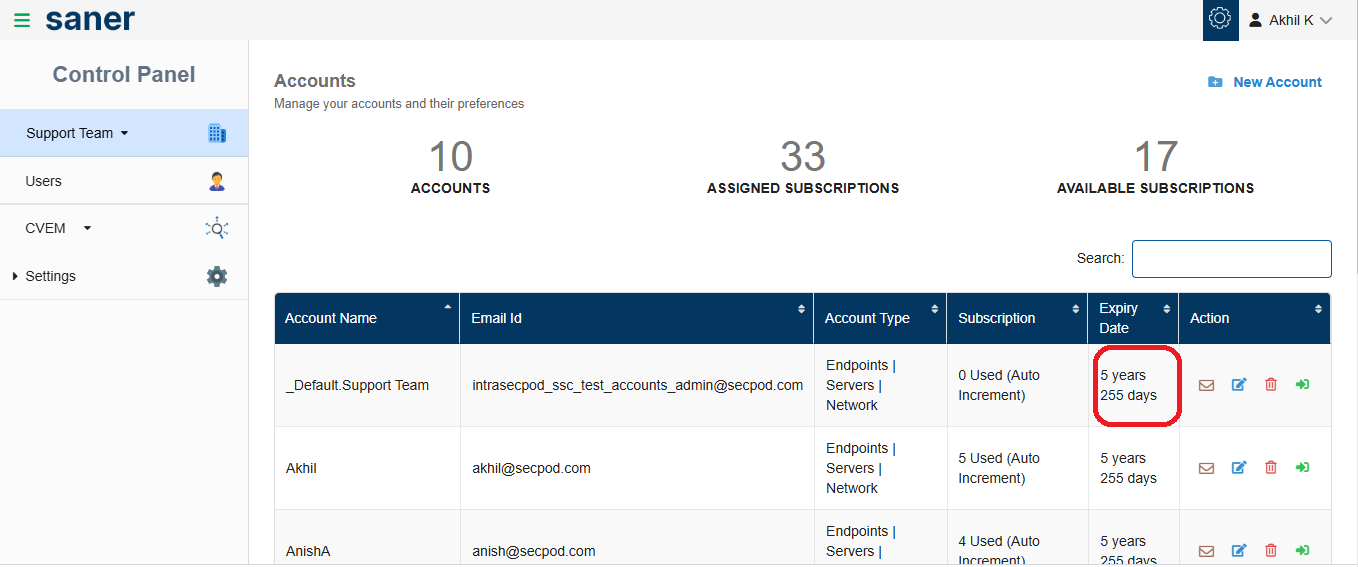
Active subscription: Displays the remaining time (years and days).
If the subscription is expired, renew it to allow agent activation and device reporting.
3. Check Device Status in the Console
Ensure the device is not listed under any restricted or inactive sections:
Unmanaged Devices
Disabled Devices
Unassigned Devices
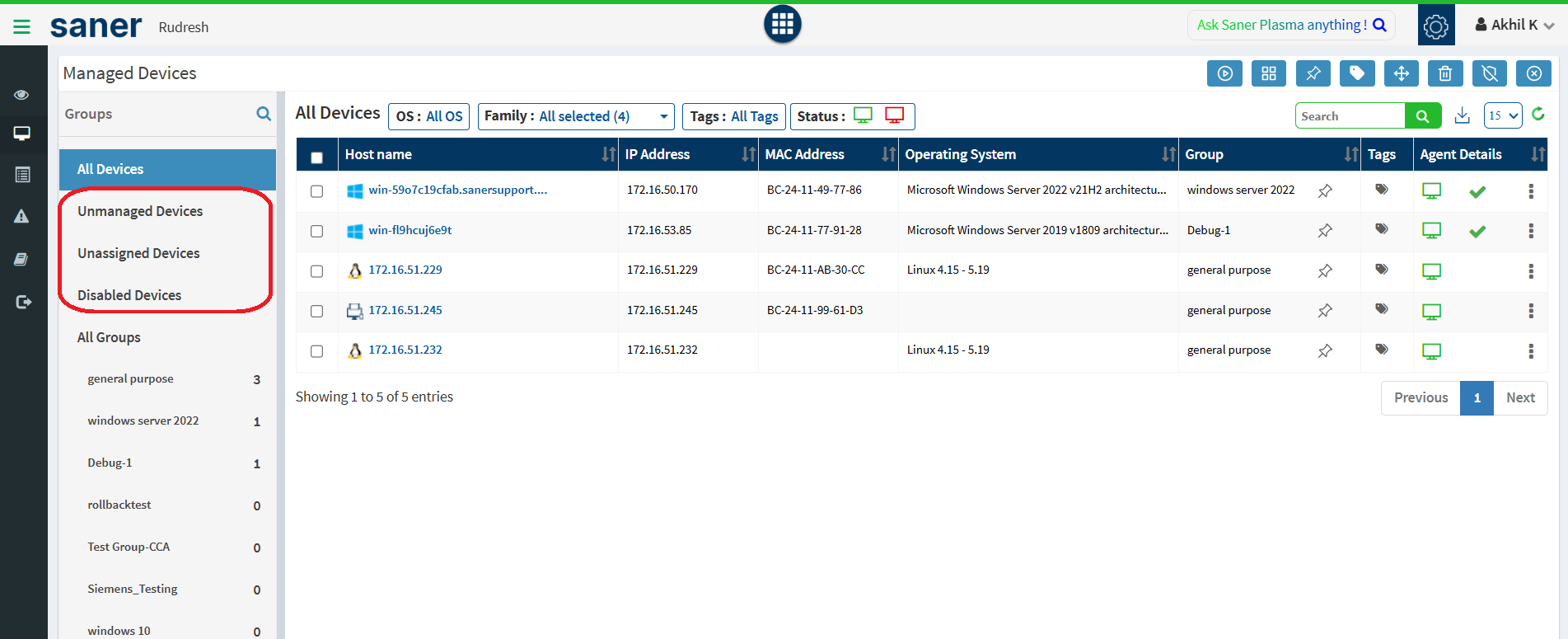
If the device appears in any of the above sections, please remove it and restart the agent service, so it can be reported correctly in the Saner CVEM console.
4. Review Agent Logs
If the subscription is valid and the device is not restricted, review the agent logs for errors.
Windows
Log Path:
C:\Program Files (x86)\SecPod Saner\Agent\<version>\logs\Example:
C:\Program Files (x86)\SecPod Saner\Agent\6.5.0.7\logs\Note: The folder name varies depending on the installed agent version.Linux and macOS
Log Path:
/var/log/saner
Open the following file: spsaneragent.log
Review the log entries for errors related to activation, connectivity, or SSL communication.
5. Check Network Connectivity
If the agent logs show SSL or network-related errors, validate connectivity between the device and the Saner CVEM server.
Cloud Deployment:
Run the following commands:
curl -v https://saner.secpod.com
ping saner.secpod.com
On-Premise Deployment:
Replace <Saner_CVEM_URL> with your server URL:
curl -v https://<Saner_CVEM_URL>
ping <Saner_CVEM_URL>
Notes:
Ensure there are no firewall or proxy restrictions blocking communication.
Verify that antivirus or endpoint security tools are not interfering.
Whitelist the Saner CVEM server URL in your network and security policies.
Need Further Assistance?
If the issue persists after completing the above steps, please contact SecPod Support at:support@secpod.com.
When contacting support, include the following to help expedite troubleshooting:
Agent log file (spsaneragent.log
Relevant screenshots
A brief summary of the troubleshooting steps already performed
Was this article helpful?
That’s Great!
Thank you for your feedback
Sorry! We couldn't be helpful
Thank you for your feedback
Feedback sent
We appreciate your effort and will try to fix the article