Product Version: 6.5.x.x
Overview
This article explains how to create and use tags to filter and select specific devices for patching, even if they belong to different groups. Using tags helps simplify patch management when you need to patch a specific software (for example, 7-Zip) across multiple groups without manually selecting each device every time.
Steps to Create and Use Tags for Patching
Step 1: Select Devices
Navigate to the All-Devices page in the Saner CVEM console.
Select the devices you want to include in the patching process.
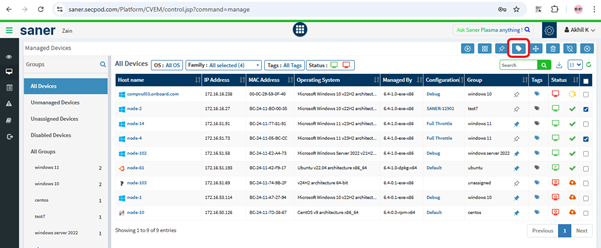
Note: Devices can be selected from different groups based on your patching requirements.
Step 2: Create a Tag
After selecting the desired devices, click Manage Tags for Devices.
Click on Create Tag.
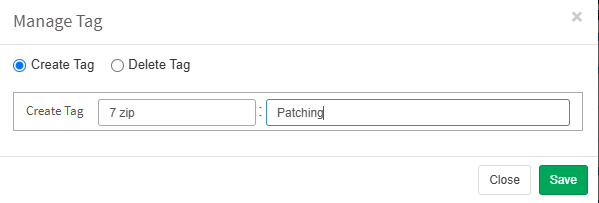
In the Tag Dialog, enter the following details:
Key: A relevant identifier (e.g., 7 Zip)
Value: A short description or purpose (e.g., patching)
Click the Save icon.
A confirmation pop-up will appear, indicating that the tag has been successfully applied to the selected devices.
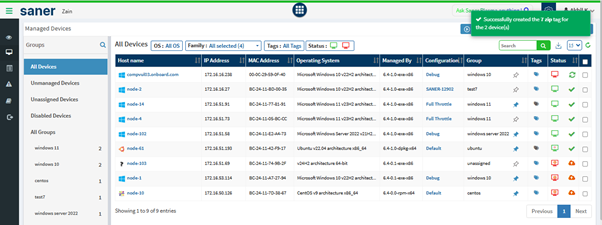
Once applied, the tag will be visible for those devices on the All-Devices page.
Step 3: Filter Devices Using the Tag
Navigate to Patch Management (PM) → Missing Patches.
Click More Filters, then select Tags.
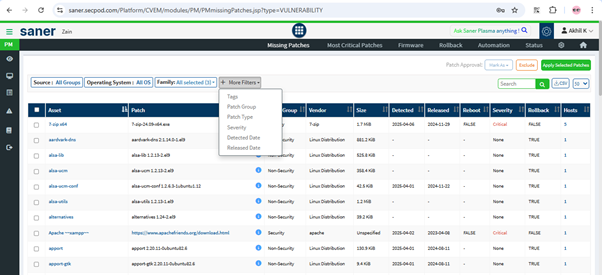
Under the Tags section:
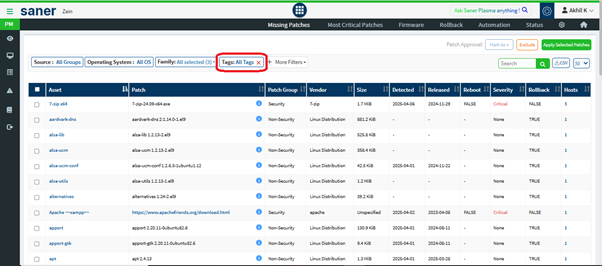

Click All Tags.
Click + Add Criteria.
In the Add Filter Criteria dialog:
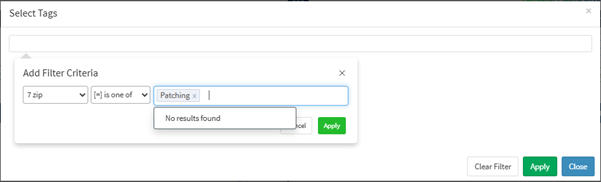
Select the tag you created earlier (for example, 7 Zip:Patching).
Click Apply to confirm your selection.

Click Apply again to finalize the filter.
Conclusion
After applying the filter, the devices associated with the 7 Zip: Patching tag will be displayed.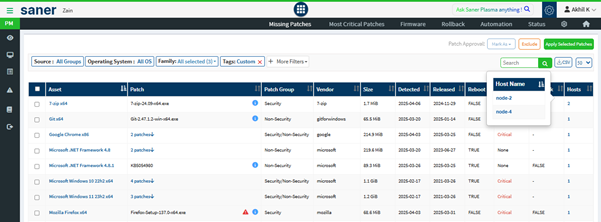 You can now proceed to patch 7-Zip on these specific devices, regardless of which group they belong to.
Additional Notes
Tags simplify device selection across multiple groups.
Tags can be reused for future patching or management tasks.
Multiple tags can be applied to the same device for different purposes (for example, patching, testing, or auditing).
Was this article helpful?
That’s Great!
Thank you for your feedback
Sorry! We couldn't be helpful
Thank you for your feedback
Feedback sent
We appreciate your effort and will try to fix the article